<?xml version="1.0" encoding="utf-8"?><feed xmlns="http://www.w3.org/2005/Atom" ><generator uri="https://jekyllrb.com/" version="3.10.0">Jekyll</generator><link href="https://embeddednerd.com/feed.xml" rel="self" type="application/atom+xml" /><link href="https://embeddednerd.com/" rel="alternate" type="text/html" /><updated>2026-06-03T22:24:19+01:00</updated><id>https://embeddednerd.com/feed.xml</id><title type="html">Embedded Nerd</title><subtitle>ESP32, Arduino, Raspberry Pi and electronics tutorials with code examples, wiring guides, sensors, displays and embedded projects.</subtitle><author><name>{&quot;avatar&quot;=&gt;&quot;/assets/images/Logonerd3.png&quot;, &quot;bio&quot;=&gt;&quot;A collection of practical electronics tutorials, embedded projects, and beginner-friendly guides focused on Arduino, ESP32, Raspberry Pi, sensors, displays, and DIY hardware development.&quot;, &quot;links&quot;=&gt;[{&quot;label&quot;=&gt;&quot;GitHub&quot;, &quot;icon&quot;=&gt;&quot;fab fa-fw fa-github&quot;, &quot;url&quot;=&gt;&quot;https://github.com/webzf&quot;}, {&quot;label&quot;=&gt;&quot;YouTube&quot;, &quot;icon&quot;=&gt;&quot;fab fa-fw fa-youtube&quot;, &quot;url&quot;=&gt;&quot;https://youtube.com/@YOURCHANNEL&quot;}, {&quot;label&quot;=&gt;&quot;Pinterest&quot;, &quot;icon&quot;=&gt;&quot;fab fa-fw fa-pinterest&quot;, &quot;url&quot;=&gt;&quot;https://pinterest.com/YOURPROFILE&quot;}]}</name></author><entry><title type="html">MPU6050 Arduino Guide: Code, Wiring &amp;amp; GitHub</title><link href="https://embeddednerd.com/mpu6050-arduino-guide/" rel="alternate" type="text/html" title="MPU6050 Arduino Guide: Code, Wiring &amp;amp; GitHub" /><published>2026-05-23T00:00:00+01:00</published><updated>2026-05-23T00:00:00+01:00</updated><id>https://embeddednerd.com/mpu6050-arduino-guide</id><content type="html" xml:base="https://embeddednerd.com/mpu6050-arduino-guide/"><![CDATA[<h1 id="mpu6050-arduino-guide-code-wiring--github">MPU6050 Arduino Guide: Code, Wiring &amp; GitHub</h1>

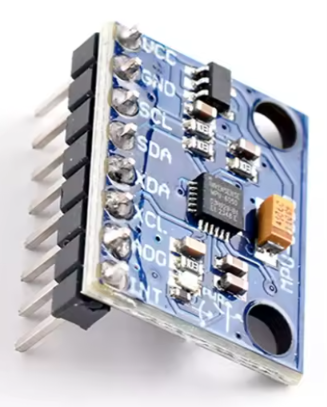
<p>Learn how to connect the MPU6050 sensor to Arduino Uno or Nano using simple wiring, working Arduino code examples, and I2C communication.</p>

<p>The MPU6050 is one of the most popular motion sensors for Arduino because it combines:</p>
<ul>
  <li>3-axis accelerometer</li>
  <li>3-axis gyroscope</li>
  <li>Temperature sensor</li>
  <li>I2C communication</li>
</ul>

<p>This tutorial includes:</p>
<ul>
  <li>MPU6050 Arduino wiring</li>
  <li>Working Arduino code</li>
  <li>Arduino Uno and Nano notes</li>
  <li>Troubleshooting tips</li>
  <li>GitHub source code</li>
</ul>

<hr />

<h1 id="what-is-the-mpu6050">What is the MPU6050?</h1>

<p>The MPU6050 is a motion tracking sensor used in:</p>
<ul>
  <li>Arduino projects</li>
  <li>Robotics</li>
  <li>Gesture control systems</li>
  <li>Motion-controlled games</li>
  <li>Drone stabilization</li>
  <li>DIY electronics</li>
</ul>

<p>It can measure:</p>
<ul>
  <li>Acceleration</li>
  <li>Rotation</li>
  <li>Tilt</li>
  <li>Motion</li>
</ul>

<p>The sensor communicates using the I2C protocol and works with both Arduino and ESP32 boards.</p>

<hr />

<h1 id="required-hardware">Required Hardware</h1>

<table>
  <thead>
    <tr>
      <th>Component</th>
      <th>Link</th>
    </tr>
  </thead>
  <tbody>
    <tr>
      <td>MPU6050 Sensor</td>
      <td><a href="https://YOUR-AFFILIATE-LINK.com">Recommended MPU6050 Module</a></td>
    </tr>
    <tr>
      <td>Arduino Uno</td>
      <td><a href="https://YOUR-AFFILIATE-LINK.com">Compatible Arduino Uno Board</a></td>
    </tr>
    <tr>
      <td>Arduino Nano</td>
      <td><a href="https://YOUR-AFFILIATE-LINK.com">Arduino Nano for Compact Projects</a></td>
    </tr>
    <tr>
      <td>Jumper Wires</td>
      <td><a href="https://YOUR-AFFILIATE-LINK.com">Male to Female Jumper Wires</a></td>
    </tr>
    <tr>
      <td>Breadboard</td>
      <td><a href="https://YOUR-AFFILIATE-LINK.com">Breadboard for Arduino Projects</a></td>
    </tr>
  </tbody>
</table>

<hr />

<h1 id="mpu6050-arduino-wiring">MPU6050 Arduino Wiring</h1>

<h2 id="arduino-uno--nano-connections">Arduino Uno / Nano Connections</h2>

<table>
  <thead>
    <tr>
      <th>MPU6050 Pin</th>
      <th>Arduino Uno/Nano</th>
    </tr>
  </thead>
  <tbody>
    <tr>
      <td>VCC</td>
      <td>5V</td>
    </tr>
    <tr>
      <td>GND</td>
      <td>GND</td>
    </tr>
    <tr>
      <td>SDA</td>
      <td>A4</td>
    </tr>
    <tr>
      <td>SCL</td>
      <td>A5</td>
    </tr>
  </tbody>
</table>

<hr />

<h1 id="wiring-notes">Wiring Notes</h1>

<ul>
  <li>SDA is the I2C data pin</li>
  <li>SCL is the I2C clock pin</li>
  <li>Default I2C address is <code class="language-plaintext highlighter-rouge">0x68</code></li>
  <li>Most MPU6050 modules support both 3.3V and 5V</li>
</ul>

<p>The MPU6050 connects easily to Arduino Uno and Nano using the built-in I2C pins.</p>

<hr />

<h1 id="install-the-mpu6050-library">Install the MPU6050 Library</h1>

<p>Open Arduino IDE and install a compatible MPU6050 library.</p>

<h2 id="arduino-ide-steps">Arduino IDE Steps</h2>

<ol>
  <li>Open Arduino IDE</li>
  <li>
    <p>Go to:</p>

    <p>Sketch → Include Library → Manage Libraries</p>
  </li>
  <li>
    <p>Search for:</p>

    <p>MPU6050</p>
  </li>
  <li>Install a compatible library</li>
</ol>

<hr />

<h1 id="mpu6050-arduino-code-example">MPU6050 Arduino Code Example</h1>

<p>The following example reads accelerometer and gyroscope values from the MPU6050 sensor.</p>
<div class="language-cpp highlighter-rouge"><div class="highlight"><pre class="highlight"><code>    <span class="cp">#include</span> <span class="cpf">&lt;Wire.h&gt;</span><span class="cp">
</span>    <span class="cp">#include</span> <span class="cpf">&lt;MPU6050.h&gt;</span><span class="cp">
</span>
    <span class="n">MPU6050</span> <span class="n">mpu</span><span class="p">;</span>

    <span class="kt">void</span> <span class="nf">setup</span><span class="p">()</span> <span class="p">{</span>
      <span class="n">Serial</span><span class="p">.</span><span class="n">begin</span><span class="p">(</span><span class="mi">115200</span><span class="p">);</span>

      <span class="n">Wire</span><span class="p">.</span><span class="n">begin</span><span class="p">();</span>

      <span class="n">mpu</span><span class="p">.</span><span class="n">initialize</span><span class="p">();</span>

      <span class="k">if</span> <span class="p">(</span><span class="n">mpu</span><span class="p">.</span><span class="n">testConnection</span><span class="p">())</span> <span class="p">{</span>
        <span class="n">Serial</span><span class="p">.</span><span class="n">println</span><span class="p">(</span><span class="s">"MPU6050 connected successfully"</span><span class="p">);</span>
      <span class="p">}</span> <span class="k">else</span> <span class="p">{</span>
        <span class="n">Serial</span><span class="p">.</span><span class="n">println</span><span class="p">(</span><span class="s">"MPU6050 connection failed"</span><span class="p">);</span>
      <span class="p">}</span>
    <span class="p">}</span>

    <span class="kt">void</span> <span class="n">loop</span><span class="p">()</span> <span class="p">{</span>

      <span class="kt">int16_t</span> <span class="n">ax</span><span class="p">,</span> <span class="n">ay</span><span class="p">,</span> <span class="n">az</span><span class="p">;</span>
      <span class="kt">int16_t</span> <span class="n">gx</span><span class="p">,</span> <span class="n">gy</span><span class="p">,</span> <span class="n">gz</span><span class="p">;</span>

      <span class="n">mpu</span><span class="p">.</span><span class="n">getMotion6</span><span class="p">(</span><span class="o">&amp;</span><span class="n">ax</span><span class="p">,</span> <span class="o">&amp;</span><span class="n">ay</span><span class="p">,</span> <span class="o">&amp;</span><span class="n">az</span><span class="p">,</span> <span class="o">&amp;</span><span class="n">gx</span><span class="p">,</span> <span class="o">&amp;</span><span class="n">gy</span><span class="p">,</span> <span class="o">&amp;</span><span class="n">gz</span><span class="p">);</span>

      <span class="n">Serial</span><span class="p">.</span><span class="n">print</span><span class="p">(</span><span class="s">"Accel X: "</span><span class="p">);</span>
      <span class="n">Serial</span><span class="p">.</span><span class="n">print</span><span class="p">(</span><span class="n">ax</span><span class="p">);</span>

      <span class="n">Serial</span><span class="p">.</span><span class="n">print</span><span class="p">(</span><span class="s">" | Accel Y: "</span><span class="p">);</span>
      <span class="n">Serial</span><span class="p">.</span><span class="n">print</span><span class="p">(</span><span class="n">ay</span><span class="p">);</span>

      <span class="n">Serial</span><span class="p">.</span><span class="n">print</span><span class="p">(</span><span class="s">" | Accel Z: "</span><span class="p">);</span>
      <span class="n">Serial</span><span class="p">.</span><span class="n">print</span><span class="p">(</span><span class="n">az</span><span class="p">);</span>

      <span class="n">Serial</span><span class="p">.</span><span class="n">print</span><span class="p">(</span><span class="s">" | Gyro X: "</span><span class="p">);</span>
      <span class="n">Serial</span><span class="p">.</span><span class="n">print</span><span class="p">(</span><span class="n">gx</span><span class="p">);</span>

      <span class="n">Serial</span><span class="p">.</span><span class="n">print</span><span class="p">(</span><span class="s">" | Gyro Y: "</span><span class="p">);</span>
      <span class="n">Serial</span><span class="p">.</span><span class="n">print</span><span class="p">(</span><span class="n">gy</span><span class="p">);</span>

      <span class="n">Serial</span><span class="p">.</span><span class="n">print</span><span class="p">(</span><span class="s">" | Gyro Z: "</span><span class="p">);</span>
      <span class="n">Serial</span><span class="p">.</span><span class="n">println</span><span class="p">(</span><span class="n">gz</span><span class="p">);</span>

      <span class="n">delay</span><span class="p">(</span><span class="mi">500</span><span class="p">);</span>
    <span class="p">}</span>
</code></pre></div></div>
<hr />

<h1 id="how-the-code-works">How the Code Works</h1>

<h2 id="wirebegin">Wire.begin()</h2>

<p>Starts I2C communication between Arduino and MPU6050.</p>

<h2 id="mpuinitialize">mpu.initialize()</h2>

<p>Initializes the sensor.</p>

<h2 id="getmotion6">getMotion6()</h2>

<p>Reads:</p>
<ul>
  <li>Accelerometer X/Y/Z</li>
  <li>Gyroscope X/Y/Z</li>
</ul>

<p>The values are printed to the Arduino Serial Monitor.</p>

<hr />

<h1 id="serial-monitor-output">Serial Monitor Output</h1>

<p>Example output:</p>

<div class="language-plaintext highlighter-rouge"><div class="highlight"><pre class="highlight"><code>Accel X: -120 | Accel Y: 340 | Accel Z: 16384 | Gyro X: 12 | Gyro Y: -8 | Gyro Z: 3
</code></pre></div></div>

<hr />

<h1 id="mpu6050-arduino-uno-notes">MPU6050 Arduino Uno Notes</h1>

<p>The MPU6050 works very well with:</p>
<ul>
  <li>Arduino Uno</li>
  <li>Arduino Nano</li>
  <li>ESP32</li>
  <li>Raspberry Pi</li>
</ul>

<p>For Arduino Uno:</p>
<ul>
  <li>SDA uses pin A4</li>
  <li>SCL uses pin A5</li>
</ul>

<p>For ESP32:</p>
<ul>
  <li>SDA usually uses GPIO21</li>
  <li>SCL usually uses GPIO22</li>
</ul>

<hr />

<h1 id="common-problems">Common Problems</h1>

<h2 id="mpu6050-not-detected">MPU6050 Not Detected</h2>

<p>Possible causes:</p>
<ul>
  <li>Wrong wiring</li>
  <li>Incorrect I2C address</li>
  <li>Loose jumper wires</li>
</ul>

<hr />

<h2 id="random-values">Random Values</h2>

<p>Possible causes:</p>
<ul>
  <li>Electrical noise</li>
  <li>Bad power supply</li>
  <li>Sensor movement during startup</li>
</ul>

<hr />

<h2 id="upload-failed">Upload Failed</h2>

<p>Try:</p>
<ul>
  <li>Selecting the correct COM port</li>
  <li>Pressing RESET on Arduino</li>
  <li>Changing USB cable</li>
</ul>

<hr />

<h1 id="mpu6050-projects">MPU6050 Projects</h1>

<p>You can use MPU6050 for:</p>
<ul>
  <li>Motion-controlled games</li>
  <li>Gesture control</li>
  <li>Robotics</li>
  <li>Self-balancing systems</li>
  <li>Tilt measurement</li>
  <li>Drone stabilization</li>
  <li>ESP32 projects</li>
</ul>

<hr />

<h1 id="recommended-starter-kits">Recommended Starter Kits</h1>

<p>Useful kits for beginners:</p>

<ul>
  <li><a href="https://YOUR-AFFILIATE-LINK.com">Arduino Starter Kit</a></li>
  <li><a href="https://YOUR-AFFILIATE-LINK.com">ESP32 Development Board</a></li>
  <li><a href="https://YOUR-AFFILIATE-LINK.com">Electronics Breadboard Kit</a></li>
</ul>

<hr />

<h1 id="github-source-code">GitHub Source Code</h1>

<p>The complete MPU6050 Arduino code is available in the GitHub repository.</p>

<p>You can expand this project with:</p>
<ul>
  <li>OLED displays</li>
  <li>ESP32 boards</li>
  <li>Motion-controlled games</li>
  <li>Wireless communication</li>
  <li>Sensor-based automation</li>
</ul>

<hr />

<h1 id="related-tutorials">Related Tutorials</h1>

<ul>
  <li><a href="../mpu6050-calibration/">MPU6050 Calibration Guide</a></li>
  <li><a href="../esp32-mpu6050/">ESP32 MPU6050 Projects</a></li>
  <li><a href="../ssd1306-oled-guide/">SSD1306 OLED Guide</a></li>
  <li><a href="../i2c-scanner/">I2C Scanner Tutorial</a></li>
</ul>

<hr />

<h1 id="conclusion">Conclusion</h1>

<p>The MPU6050 is one of the best beginner-friendly motion sensors for Arduino and ESP32 projects.</p>

<p>With simple wiring and a few lines of code, you can build:</p>
<ul>
  <li>Motion tracking systems</li>
  <li>Arduino games</li>
  <li>Robotics projects</li>
  <li>Gesture control interfaces</li>
  <li>DIY electronics applications</li>
</ul>

<p>The combination of Arduino + MPU6050 remains one of the most popular setups for embedded electronics and maker projects.</p>]]></content><author><name>{&quot;avatar&quot;=&gt;&quot;/assets/images/Logonerd3.png&quot;, &quot;bio&quot;=&gt;&quot;A collection of practical electronics tutorials, embedded projects, and beginner-friendly guides focused on Arduino, ESP32, Raspberry Pi, sensors, displays, and DIY hardware development.&quot;, &quot;links&quot;=&gt;[{&quot;label&quot;=&gt;&quot;GitHub&quot;, &quot;icon&quot;=&gt;&quot;fab fa-fw fa-github&quot;, &quot;url&quot;=&gt;&quot;https://github.com/webzf&quot;}, {&quot;label&quot;=&gt;&quot;YouTube&quot;, &quot;icon&quot;=&gt;&quot;fab fa-fw fa-youtube&quot;, &quot;url&quot;=&gt;&quot;https://youtube.com/@YOURCHANNEL&quot;}, {&quot;label&quot;=&gt;&quot;Pinterest&quot;, &quot;icon&quot;=&gt;&quot;fab fa-fw fa-pinterest&quot;, &quot;url&quot;=&gt;&quot;https://pinterest.com/YOURPROFILE&quot;}]}</name></author><category term="Arduino" /><category term="Sensors" /><category term="Esp32" /><category term="MPU6050" /><category term="Arduino" /><category term="Arduino Uno" /><category term="ESP32" /><category term="Esp32-projects" /><category term="Gyroscope" /><category term="Accelerometer" /><category term="I2C" /><summary type="html"><![CDATA[Learn how to connect MPU6050 to Arduino Uno and Nano with wiring diagrams, working code examples and GitHub downloads.]]></summary></entry><entry><title type="html">Template</title><link href="https://embeddednerd.com/template/" rel="alternate" type="text/html" title="Template" /><published>2026-05-23T00:00:00+01:00</published><updated>2026-05-23T00:00:00+01:00</updated><id>https://embeddednerd.com/template</id><content type="html" xml:base="https://embeddednerd.com/template/"><![CDATA[<h1 id="project-title">[PROJECT TITLE]</h1>

<p>Example:</p>
<h1 id="esp32-snake-game-with-mpu6050-code--wiring--github">ESP32 Snake Game with MPU6050 (Code + Wiring + GitHub)</h1>

<p><img src="/assets/images/MPU6050-Arduino-Guide.png" alt="ESP32 Snake Game with MPU6050" /></p>

<hr />

<h2 id="introduction">Introduction</h2>

<p>In this tutorial, you’ll learn how to build a [PROJECT NAME] using an ESP32, [SENSORS/MODULES], and an OLED display.</p>

<p>This project is beginner-friendly and includes:</p>
<ul>
  <li>Complete wiring guide</li>
  <li>Example source code</li>
  <li>Library installation</li>
  <li>Troubleshooting tips</li>
  <li>GitHub download</li>
</ul>

<p>Perfect for Arduino, ESP32, and DIY electronics enthusiasts.</p>

<hr />

<h2 id="what-you-will-build">What You Will Build</h2>

<p><img src="/assets/images/MPU6050-Arduino-Guide.png" alt="ESP32 Snake Game with MPU6050" /></p>

<p>In this project, you will build:</p>

<ul>
  <li>[FEATURE 1]</li>
  <li>[FEATURE 2]</li>
  <li>[FEATURE 3]</li>
</ul>

<p>Example:</p>
<ul>
  <li>Motion-controlled snake game</li>
  <li>Real-time OLED graphics</li>
  <li>MPU6050 tilt controls</li>
</ul>

<hr />

<h2 id="components-required">Components Required</h2>

<p><img src="/assets/images/MPU6050-Arduino-Guide.png" alt="ESP32 Snake Game with MPU6050" /></p>

<table>
  <thead>
    <tr>
      <th>Component</th>
      <th>Quantity</th>
    </tr>
  </thead>
  <tbody>
    <tr>
      <td>ESP32 Board</td>
      <td>1</td>
    </tr>
    <tr>
      <td>MPU6050 Sensor</td>
      <td>1</td>
    </tr>
    <tr>
      <td>OLED SSD1306 Display</td>
      <td>1</td>
    </tr>
    <tr>
      <td>Breadboard</td>
      <td>1</td>
    </tr>
    <tr>
      <td>Jumper Wires</td>
      <td>Several</td>
    </tr>
  </tbody>
</table>

<hr />

<h2 id="recommended-components">Recommended Components</h2>

<p>The following parts were used in this build:</p>

<ul>
  <li>ESP32 Board → [Affiliate Link]</li>
  <li>MPU6050 Sensor → [Affiliate Link]</li>
  <li>OLED Display → [Affiliate Link]</li>
  <li>Breadboard Kit → [Affiliate Link]</li>
</ul>

<p>These components are beginner-friendly and work reliably for most ESP32 projects.</p>

<hr />

<h2 id="project-demonstration">Project Demonstration</h2>

<p><img src="/assets/images/MPU6050-Arduino-Guide.png" alt="ESP32 Snake Game with MPU6050" /></p>

<p>You can also watch the full project demonstration here:</p>

<p>[YouTube Video Link]</p>

<hr />

<h2 id="wiring-diagram">Wiring Diagram</h2>

<p><img src="/assets/images/MPU6050-Arduino-Guide.png" alt="ESP32 Snake Game with MPU6050" /></p>

<h3 id="mpu6050-connections">MPU6050 Connections</h3>

<table>
  <thead>
    <tr>
      <th>MPU6050</th>
      <th>ESP32</th>
    </tr>
  </thead>
  <tbody>
    <tr>
      <td>VCC</td>
      <td>3.3V</td>
    </tr>
    <tr>
      <td>GND</td>
      <td>GND</td>
    </tr>
    <tr>
      <td>SDA</td>
      <td>GPIO 21</td>
    </tr>
    <tr>
      <td>SCL</td>
      <td>GPIO 22</td>
    </tr>
  </tbody>
</table>

<h3 id="oled-display-connections">OLED Display Connections</h3>

<table>
  <thead>
    <tr>
      <th>OLED</th>
      <th>ESP32</th>
    </tr>
  </thead>
  <tbody>
    <tr>
      <td>VCC</td>
      <td>3.3V</td>
    </tr>
    <tr>
      <td>GND</td>
      <td>GND</td>
    </tr>
    <tr>
      <td>SDA</td>
      <td>GPIO 21</td>
    </tr>
    <tr>
      <td>SCL</td>
      <td>GPIO 22</td>
    </tr>
  </tbody>
</table>

<hr />

<h2 id="installing-required-libraries">Installing Required Libraries</h2>

<p>Open the Arduino IDE Library Manager and install:</p>

<ul>
  <li>Adafruit GFX</li>
  <li>Adafruit SSD1306</li>
  <li>MPU6050 Library</li>
</ul>

<hr />

<h2 id="arduino--esp32-code">Arduino / ESP32 Code</h2>

<div class="language-plaintext highlighter-rouge"><div class="highlight"><pre class="highlight"><code>// Paste your code here
</code></pre></div></div>

<hr />

<h2 id="uploading-the-code">Uploading the Code</h2>

<ol>
  <li>Connect the ESP32 board to your computer</li>
  <li>Open Arduino IDE</li>
  <li>Select the correct ESP32 board</li>
  <li>Choose the correct COM port</li>
  <li>Upload the sketch</li>
</ol>

<hr />

<h2 id="how-the-project-works">How the Project Works</h2>

<p>The ESP32 reads sensor data from the MPU6050 using I2C communication.</p>

<p>The motion values are processed in real time and used to control the game displayed on the OLED screen.</p>

<p>This project demonstrates:</p>
<ul>
  <li>Motion sensing</li>
  <li>OLED graphics</li>
  <li>Real-time controls</li>
  <li>ESP32 programming</li>
  <li>I2C communication</li>
</ul>

<hr />

<h2 id="project-running">Project Running</h2>

<p><img src="/assets/images/MPU6050-Arduino-Guide.png" alt="ESP32 Snake Game with MPU6050" /></p>

<p>After uploading the code, the OLED display should start showing the game interface.</p>

<p>Tilting the MPU6050 changes the movement direction instantly.</p>

<hr />

<h2 id="troubleshooting">Troubleshooting</h2>

<h3 id="oled-display-not-working">OLED Display Not Working</h3>
<ul>
  <li>Verify SDA and SCL wiring</li>
  <li>Check the display I2C address</li>
  <li>Confirm 3.3V power connection</li>
</ul>

<h3 id="mpu6050-not-detected">MPU6050 Not Detected</h3>
<ul>
  <li>Recheck wiring connections</li>
  <li>Install the correct library</li>
  <li>Run an I2C scanner sketch</li>
</ul>

<h3 id="esp32-upload-errors">ESP32 Upload Errors</h3>
<ul>
  <li>Hold the BOOT button during upload</li>
  <li>Use a USB data cable</li>
  <li>Reinstall ESP32 board support</li>
</ul>

<hr />

<h2 id="project-improvements">Project Improvements</h2>

<p>You can improve this project by:</p>
<ul>
  <li>Adding sound effects</li>
  <li>Creating multiple levels</li>
  <li>Saving high scores</li>
  <li>Using a larger display</li>
  <li>Adding Bluetooth support</li>
</ul>

<hr />

<h2 id="frequently-asked-questions">Frequently Asked Questions</h2>

<h3 id="can-i-use-arduino-uno-instead-of-esp32">Can I use Arduino Uno instead of ESP32?</h3>
<p>Yes, although performance may be lower depending on the project complexity.</p>

<h3 id="does-this-work-with-platformio">Does this work with PlatformIO?</h3>
<p>Yes, the code can easily be adapted for PlatformIO.</p>

<h3 id="can-i-use-another-oled-display">Can I use another OLED display?</h3>
<p>Most SSD1306 I2C OLED displays should work correctly.</p>

<hr />

<h2 id="related-projects">Related Projects</h2>

<ul>
  <li>ESP32 OLED Tutorial</li>
  <li>MPU6050 Beginner Guide</li>
  <li>Best ESP32 Projects for Beginners</li>
  <li>ESP32 Motion Sensor Projects</li>
</ul>

<hr />

<h2 id="final-result">Final Result</h2>

<p><img src="/assets/images/MPU6050-Arduino-Guide.png" alt="ESP32 Snake Game with MPU6050" /></p>

<p>This project is a great way to learn:</p>
<ul>
  <li>ESP32 programming</li>
  <li>Motion sensing</li>
  <li>OLED graphics</li>
  <li>Embedded systems</li>
  <li>DIY electronics</li>
</ul>

<p>If you enjoyed this project, check out the recommended components used in this build.</p>

<hr />

<h2 id="github-download">GitHub Download</h2>

<p>Download the full source code and project files here:</p>

<p>[GitHub Repository Link]</p>

<hr />

<h2 id="recommended-parts">Recommended Parts</h2>

<p>Support future tutorials by checking the components used in this project:</p>

<ul>
  <li>ESP32 Board → [Affiliate Link]</li>
  <li>MPU6050 Sensor → [Affiliate Link]</li>
  <li>OLED Display → [Affiliate Link]</li>
</ul>

<hr />

<h2 id="share-this-project">Share This Project</h2>

<p>If you built this project:</p>
<ul>
  <li>Share your results</li>
  <li>Modify the code</li>
  <li>Add new features</li>
  <li>Fork the GitHub repository</li>
  <li>Create your own version</li>
</ul>]]></content><author><name>{&quot;avatar&quot;=&gt;&quot;/assets/images/Logonerd3.png&quot;, &quot;bio&quot;=&gt;&quot;A collection of practical electronics tutorials, embedded projects, and beginner-friendly guides focused on Arduino, ESP32, Raspberry Pi, sensors, displays, and DIY hardware development.&quot;, &quot;links&quot;=&gt;[{&quot;label&quot;=&gt;&quot;GitHub&quot;, &quot;icon&quot;=&gt;&quot;fab fa-fw fa-github&quot;, &quot;url&quot;=&gt;&quot;https://github.com/webzf&quot;}, {&quot;label&quot;=&gt;&quot;YouTube&quot;, &quot;icon&quot;=&gt;&quot;fab fa-fw fa-youtube&quot;, &quot;url&quot;=&gt;&quot;https://youtube.com/@YOURCHANNEL&quot;}, {&quot;label&quot;=&gt;&quot;Pinterest&quot;, &quot;icon&quot;=&gt;&quot;fab fa-fw fa-pinterest&quot;, &quot;url&quot;=&gt;&quot;https://pinterest.com/YOURPROFILE&quot;}]}</name></author><category term="Esp32" /><category term="Sensors" /><category term="MPU6050" /><category term="Esp32" /><category term="Arduino Uno" /><category term="ESP32" /><category term="Gyroscope" /><category term="Accelerometer" /><category term="I2C" /><summary type="html"><![CDATA[Learn how to connect MPU6050 to Arduino Uno and Nano with wiring diagrams, working code examples and GitHub downloads.]]></summary></entry></feed>